Daily Branch Report
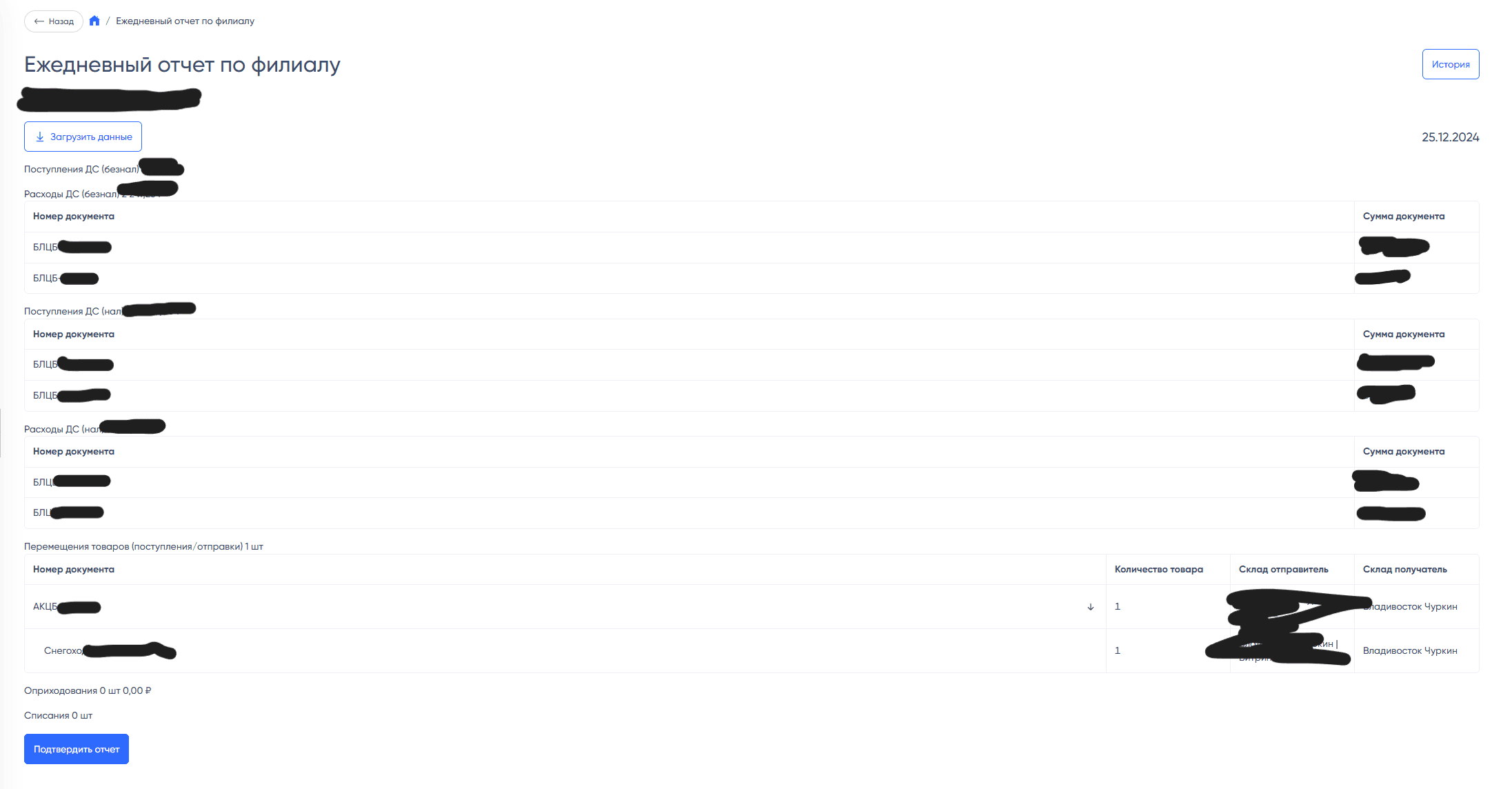
Downloading the Report
The report is downloaded manually by each manager at the appropriate time.
The download takes less than a minute, and the manual update allows for immediate access to fresh data without the need to update data for all branches every few minutes in the background.
If the report has been previously downloaded (on that day), the existing data is displayed.
Report Composition
The report uses the following data:
- Cash inflows (non-cash) indicating the total amount and documents (number, amount)
- Cash outflows (non-cash) indicating the total amount and documents (number, amount)
- Cash inflows (cash) indicating the total amount and documents (number, amount)
- Cash outflows (cash) indicating the total amount and documents (number, amount)
- Product transfers (inflows/shipments) indicating the total quantity of all products from documents, documents (number, product quantity, sender warehouse, recipient warehouse), products (name, product quantity, sender warehouse, recipient warehouse)
- Product receipts indicating the total amount and total quantity of products from documents, documents (number, product quantity, amount), products (name, product quantity, amount)
- Product write-offs indicating the total quantity of products from documents, documents (number, product quantity), products (number, product quantity)
Report Confirmation
The fact of confirmation is recorded, including who confirmed it, in which department, and when.
The summary that was shown to the branch manager beforehand is saved. Along with it, raw data is preserved: documents from 1C in the form they were at the moment of confirmation. If they are updated later, the history will not change.
This is preserved for future reference to compare confirmed reports and actual data for the day. For security, when any actions with documents are performed after the end of the working day.
After clicking the button and until the end of the day, re-confirmation is not available, and the button is not displayed.
Information about the confirmed report, along with all documents and products, is saved and can be retrieved from the history.
Report History
The manager or section admin or super admin goes to the page /app/daily-report/history. The page displays data of confirmed reports by day. The user clicks on the arrow in the report column — they are shown the same data as on the daily report page.
There are 3 filters:
- Start date of the sampling period
- End date
- Employee selection — this filter is available only to admins; other users can only view data for themselves.