Knowledge Base
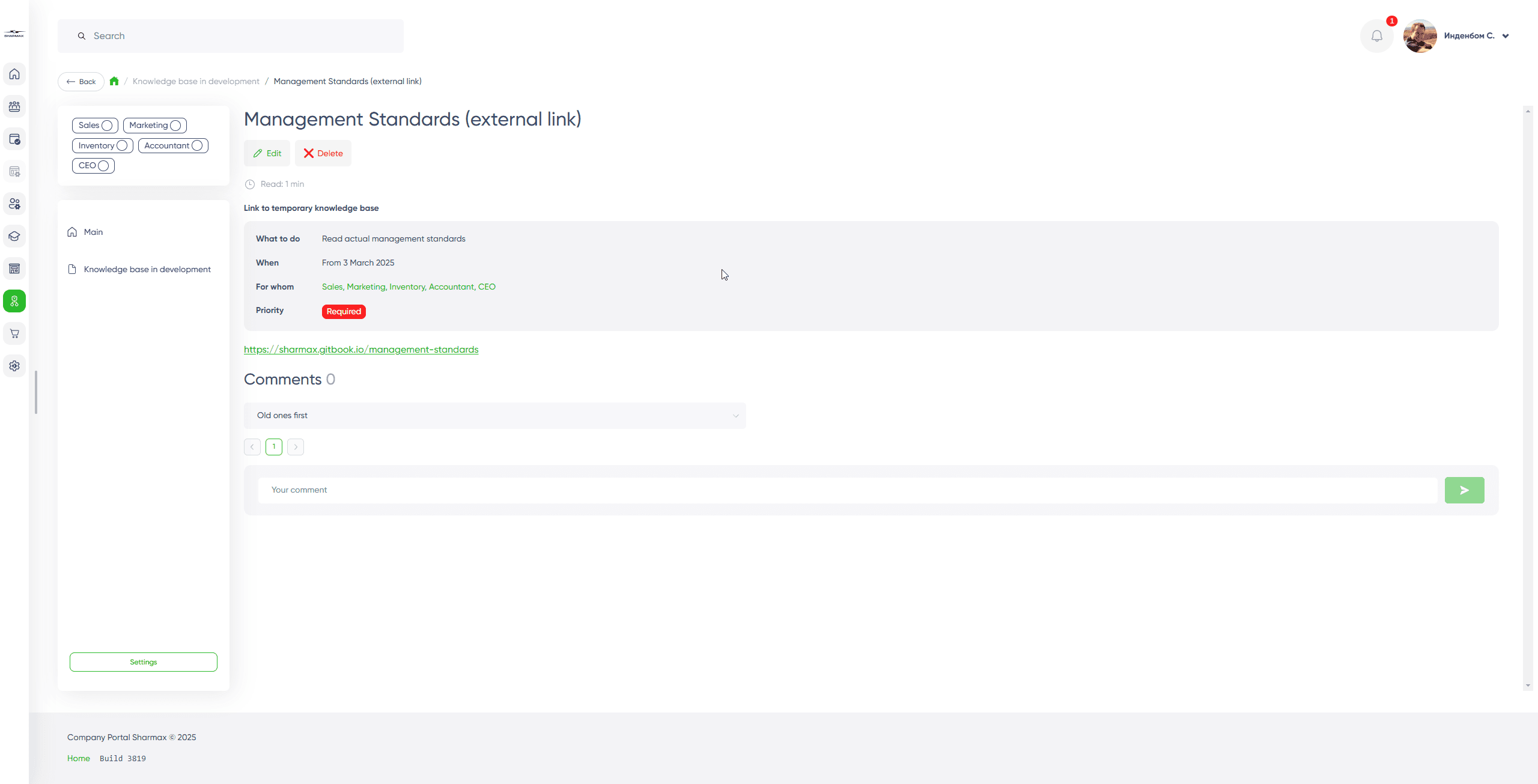
The Knowledge Base is a dedicated section for information necessary for franchisees to launch and maintain their business. It contains various standards and describes processes across all areas of the business.
Documents in the Knowledge Base are grouped by sections and categories. They are also linked to different "Roles," positions within the business.
Sections
A section is a part of the knowledge base with its own separate category structure. Essentially, it functions as a standalone knowledge base.
Home Page
When entering a section, you will land on the "Home" page, which is always available in the category navigator on the left. The "Home" is not a category per se; it is a technical page that serves two purposes:
- The user lands on this page and can select the page of interest in the category navigator.
- The "Home" displays all articles marked as "Important."
Categories
Categories are a tree structure that is linked to a specific section. Categories can be nested to any depth.
Note: It is important to note that viewing a category that has child subcategories is not supported. Clicking on such a category in the navigator will simply expand it, but you will not be able to enter it. Therefore, articles should be linked to categories at the last level of nesting.
Roles
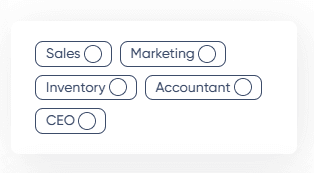
Roles are a special set of roles (functionally, they are similar to tags) that allow filtering documents and sections to find the necessary information for individuals associated with specific activities in the business.
Role Selection
In the category navigator, there is an option to select one or more roles. After clicking, you will be redirected to the home page, the displayed articles will be filtered, and only those categories that have articles linked to the selected role will remain in the category tree.
Articles
An article is a standard text document with additional parameters:
- Brief Description: what is displayed immediately under the title. It describes what this article is about.
- What to Do: a line that informs what this regulation or instruction requires.
- When: a date indicating from which date this regulation is valid.
- For Whom: roles to which this article pertains.
- Region: a line indicating which countries or regions this regulation or article applies to.
- "Important" Mark: allows the article to be displayed on the home page of the section.
On the article viewing screen, there are also additional features:
- Reading Time: an estimated time calculated automatically based on the volume of text.
- Comments: a standard feature of the corporate portal, comments can be left by any reader.
Settings
Knowledge base administrators have access to create, edit, and delete articles, as well as to settings:
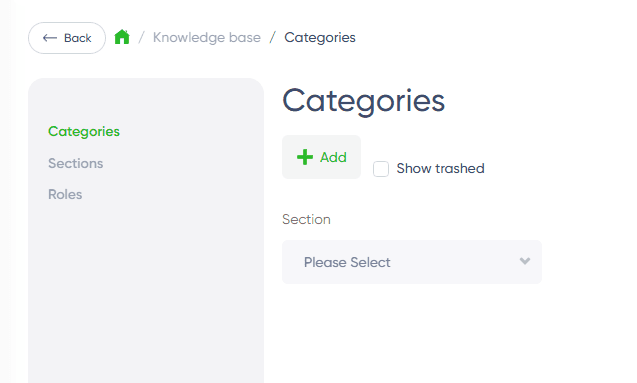
Category Settings
When entering category settings, you must first select one of the sections.
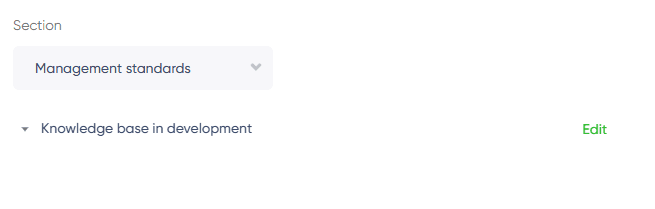
Next, you will have the option to create or edit a category.
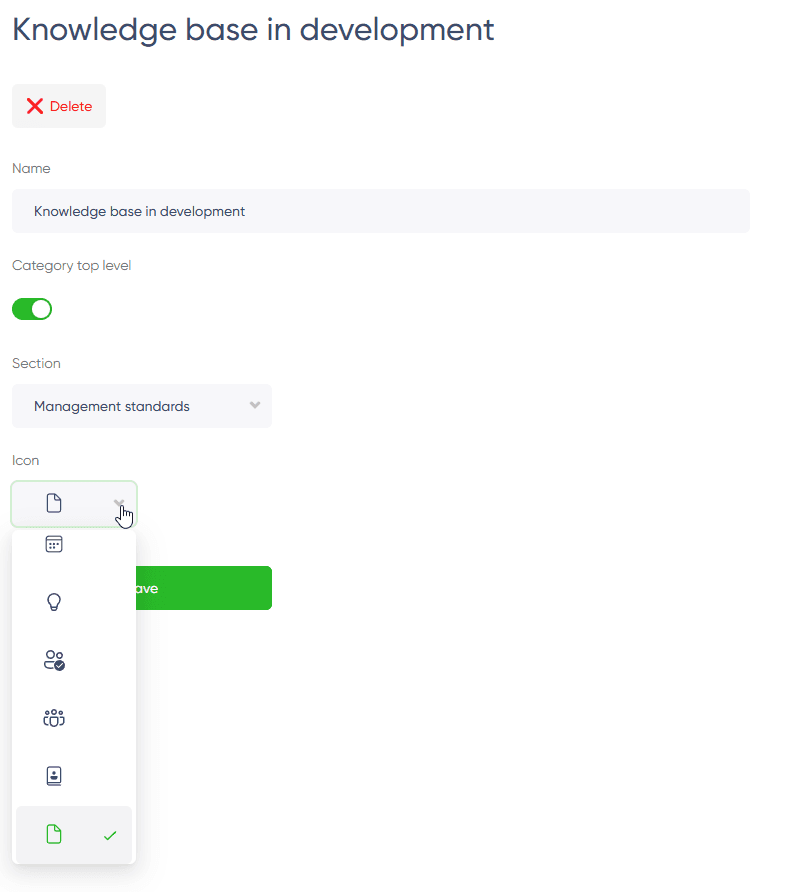
The form works as follows:
- Name — a required field.
- Switch to indicate whether the category is a top-level category.
- If it is a top-level category, you need to select a section.
- If not, you need to select a parent category.
- Selection of one of the preset icons.
Section Settings
This is a simple list of section names. You can edit the names directly in the list, and they will be saved upon entry.
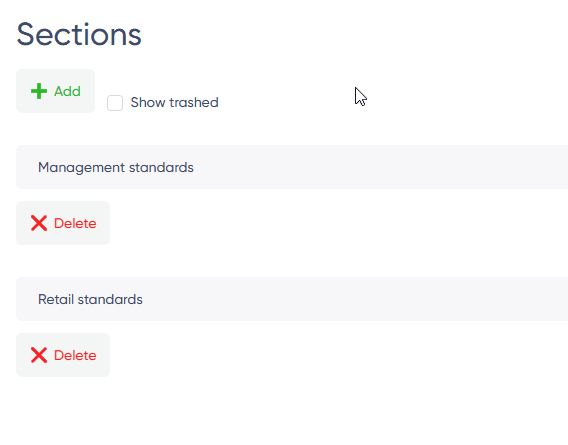
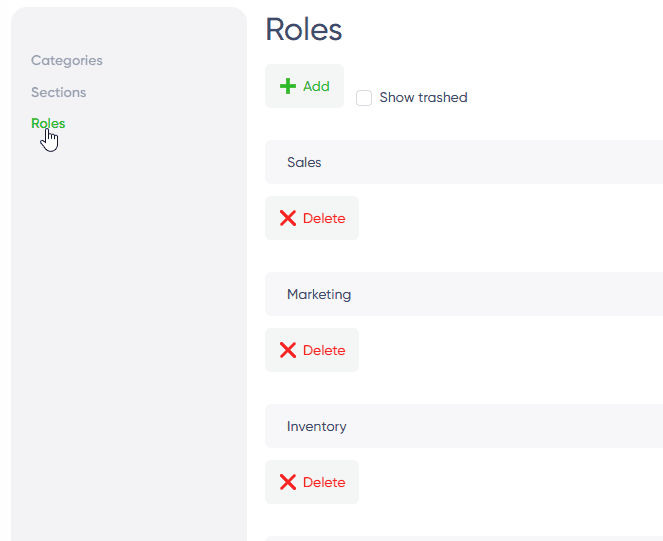
Role Settings
This is a simple list of role names. You can edit roles directly in the list, and they will be saved upon entry.