Instructions for Editing Approver Settings in the Invoice Approval System
Editing the approver settings for invoices is performed in the Approval System module section.
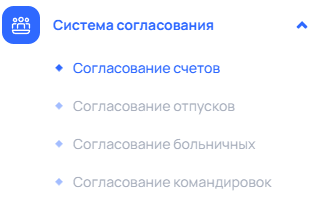
STEP 1 To navigate to the working area of the Invoice Approval module in the portal's system menu, execute Approval System ➔ Invoice Approval:
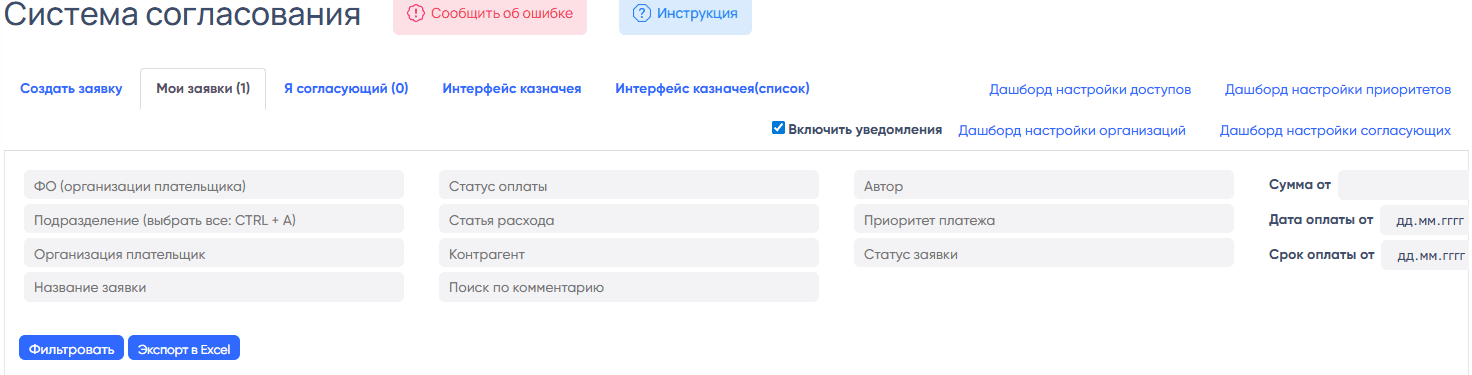
STEP 2 In the right part of the screen in the Approval System working area, click on Approver Settings Dashboard:
STEP 3 In the Approver Settings working area, select the BY FO tab:
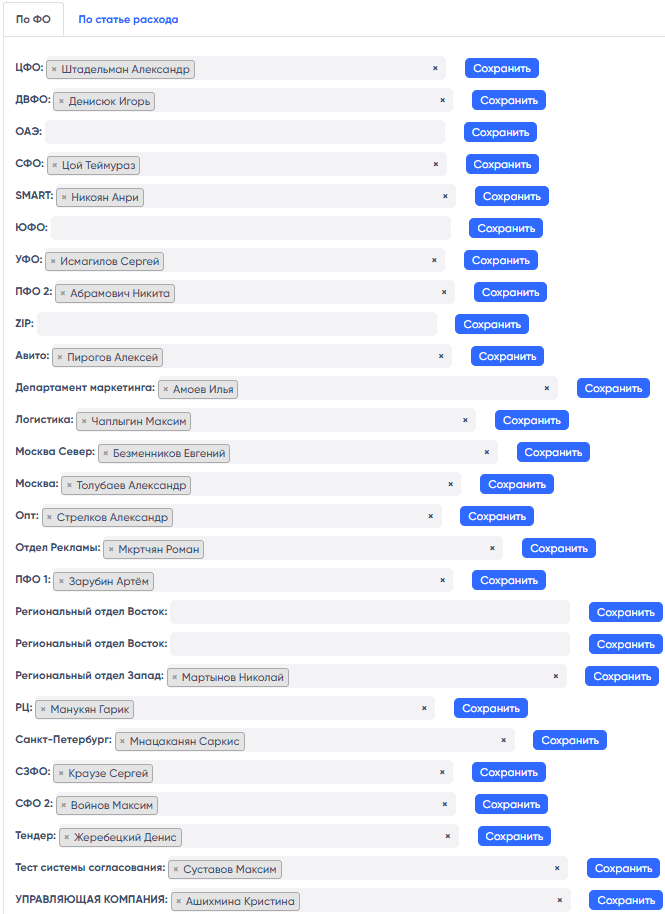
STEP 4 Select (place the cursor) in the field where you need to edit the approvers.
To remove an existing approver, click on the "cross" area of the section with the employee's name:
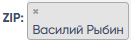
After that, click Save next to the field.
Upon successful removal of the approver, their section will disappear from the editable field, and when creating an invoice, this employee will be removed from the list of approvers for the corresponding field.
To add a new approver, in the selected field, start typing the First Name and Last Name of the new approver. Upon successful input, a suggestion will appear as follows:

Click on the selected employee, and then click Save next to the corresponding field. Upon successful addition of the approver, their section will appear in the editable field, and when creating an invoice, this employee will be displayed in the list of approvers for the corresponding field.