Surveys
Question List
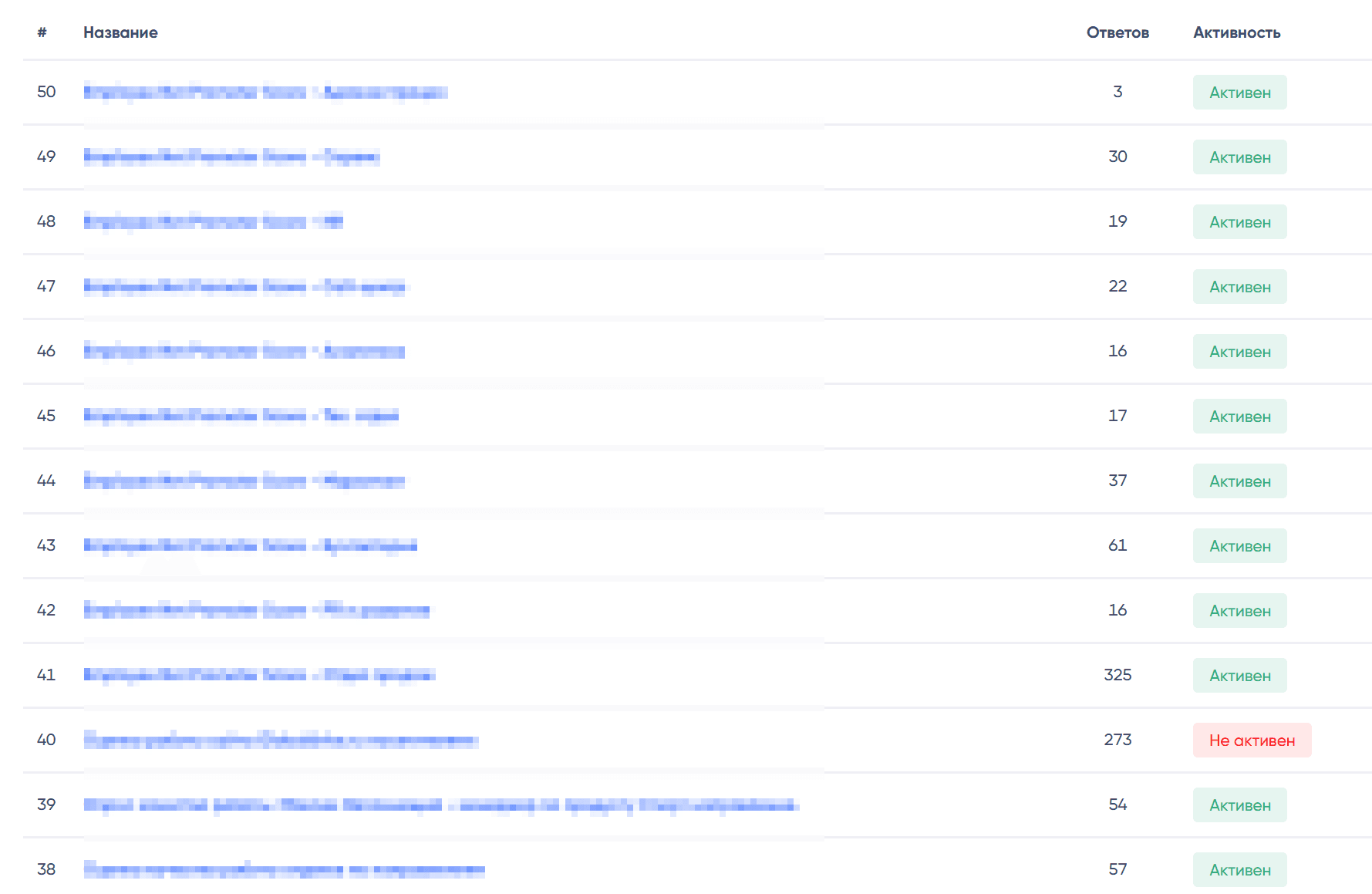
The question list displays the title, number of responses, and activity.
Adding and Editing a Survey
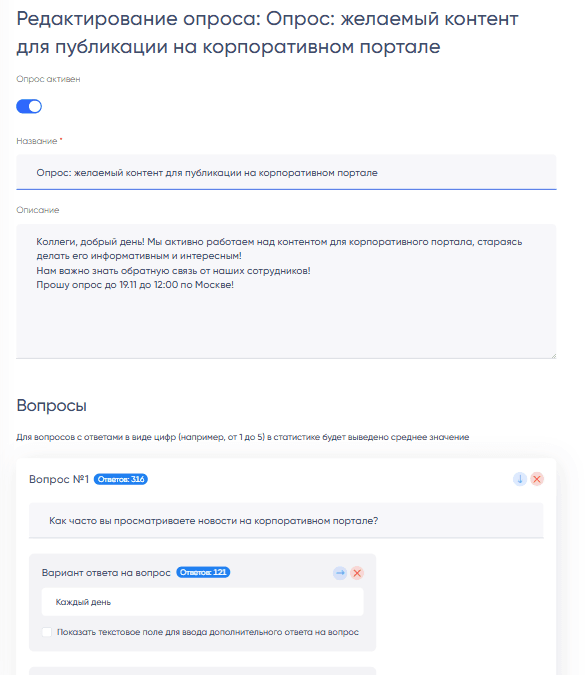
Editing a Survey
Available options:
- Change the order of questions
- Add questions and answers
- Change the order of answers
- Checkbox "Show text field for entering additional answers to the question"
- Allows collecting custom answer options
- "Copy" button — creates a duplicate of the survey
- Download statistics of responses in an Excel file
- Add researches
Researches
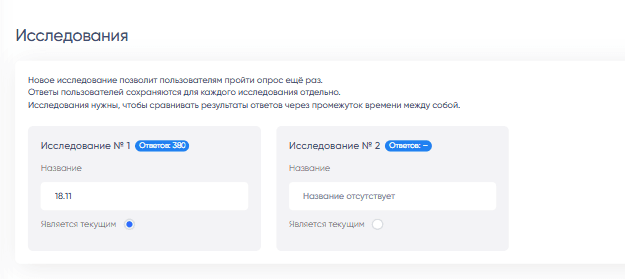
Multiple Researches
Research is a restart of a survey while retaining previous results. The same survey can be restarted periodically, obtaining new responses from the same users who have already completed it. Responses to each research are stored separately.
Launching a Survey
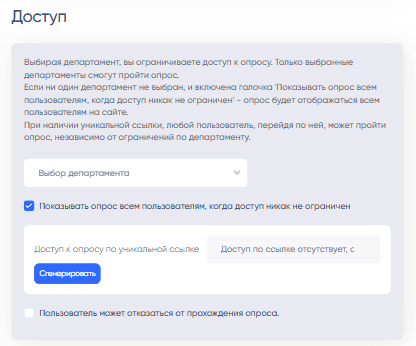
A survey can be launched in different ways:
- For all users
- For a specific department
- With access via a link
- A unique link will be generated that cannot be guessed. It can be sent to any employee, granting them access to the survey.
There is also an option to decline the survey: a "Decline" button will appear in the survey along with a clear message that the decline will be recorded. All declines will be included in the statistics.
To launch the survey, the checkbox "Survey is active" must be checked.
Launching a Survey for All Employees Accessing the Portal
To make the survey appear for everyone accessing the portal, the following steps must be taken:
- Check the "Survey is active" checkbox
- Do not select any departments
- Check the "Show survey to all users when access is not restricted" checkbox.
After this, the survey will appear on the screen for each user upon entering the corporate portal.
Obtaining Results
On the report editing page, you can download the response statistics. The file will contain the following information:
- Overall statistics on responses and a list of all "Custom answer" responses
- List of declines
- Breakdown by branches, districts, and departments
Completing a Survey
A survey can be completed in several ways:
- You clicked on a link to the survey, and it opened on the screen.
- You accessed the corporate portal and found an uncompleted survey — it will appear in the middle of the screen.
- You opened the list of postponed surveys and clicked on the survey title.
Completing the survey itself is quite straightforward — you need to check boxes, sometimes enter your options, and then click submit.

However, there is a list of postponed surveys on the corporate portal, and several levels of declining to complete the survey are provided:
- The simplest way — close the survey by clicking the cross or clicking in an empty space. In this case, the survey will disappear from the screen and will remain in the postponed section until the page is reloaded. Upon the next visit, the survey will reappear on the screen.
- You can postpone the survey. This can be done with any survey, even while filling it out — responses for filled items will be saved. After postponing, the survey will appear at the top of the postponed list, but will not pop up upon page reload.
- You can completely decline the survey if such an option is checked in the survey settings. This interaction is recorded in the system and displayed in the survey statistics.