Company Assets
IT asset management and accounting
The Assets section is designed for managing all company assets.
To navigate to the Assets section, go to the corporate portal menu Human Resources → Assets.
Open the "Assets" section on the portal
Asset List
The asset list displays:
- ID
- Name
- Inventory Number
- Description
- Status: Occupied or Free
There are filters:
- Search by name
- Filter by category
- Filter by status
Creating/Editing an Asset
In the asset settings, you can specify:
- Inventory Number
- Description
- Status: Occupied or Free
- Purchase Cost
- ID in 1C
- ID in GLPI
- Warehouse to which the asset belongs
- Start Date: a universal field to specify, for example, the date of domain purchase or contract signing
- End Date: a universal field to specify, for example, the last day of the contract or until what date the domain is purchased
- Registration Details: textual data, such as passport information for domain registration
- Registrant: the employee on whose behalf the contract is signed or whose registration details are used
- Materially Responsible: the employee responsible for the asset, but not necessarily a user
Viewing an Asset

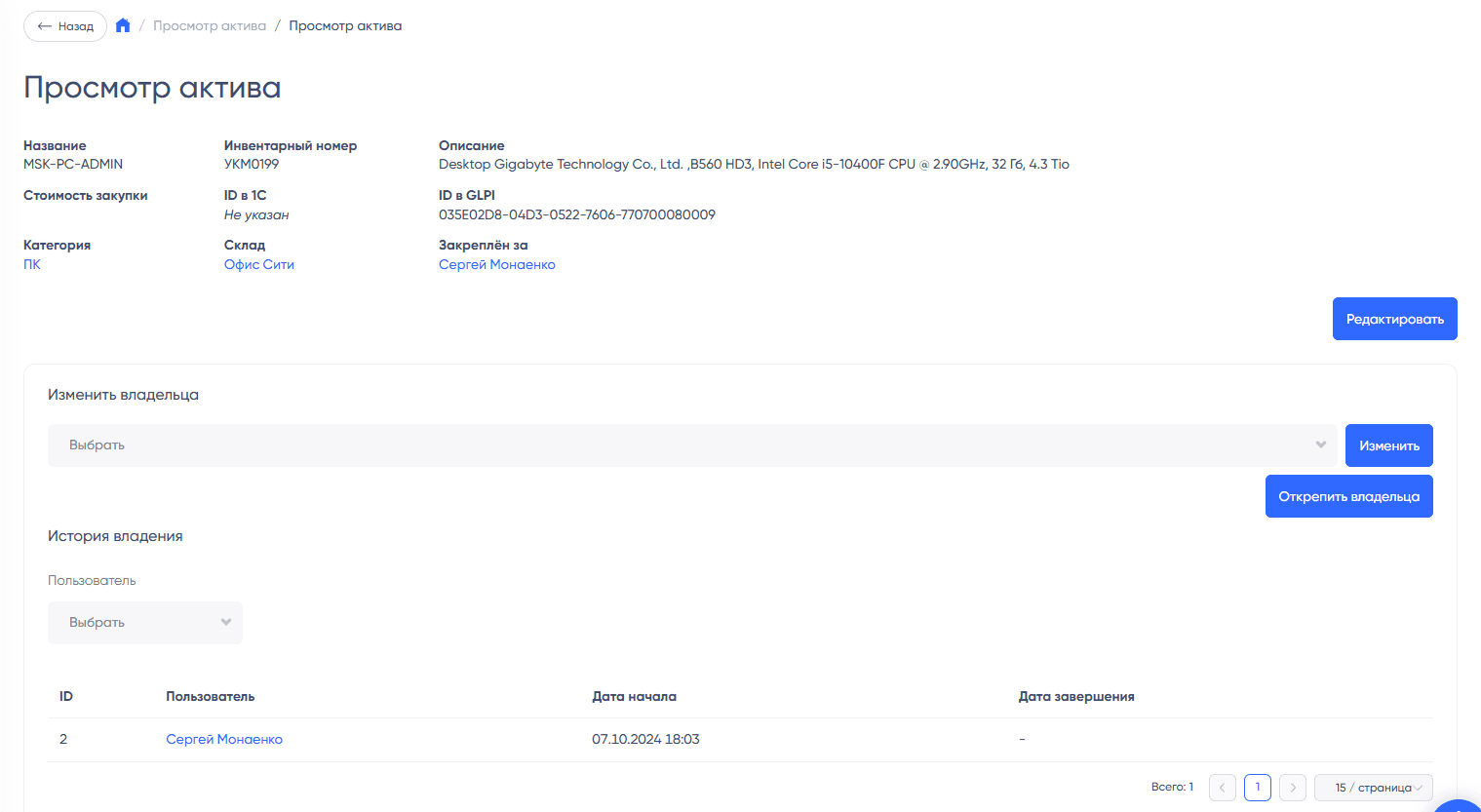
When viewing an asset, all its parameters are visible, as well as the ownership history.
Available Actions
- Edit: will open the asset editing form
- Change Owner: this will create a record in the history with the end date for the previous owner and the start date for the next
- Unlink Owner: this will update the end date of ownership for the previous owner in the history. The asset will then be considered free.
Asset Categories
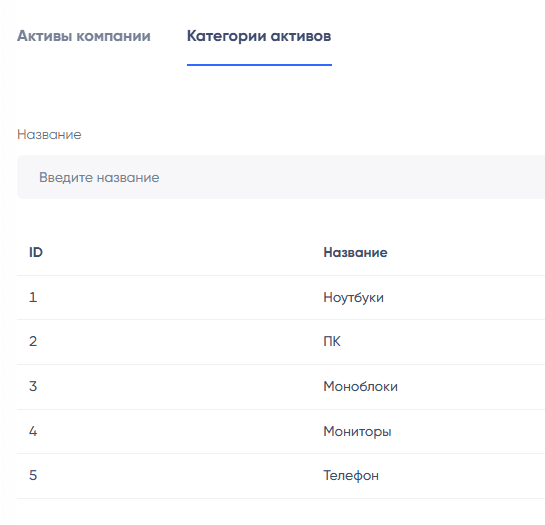
Asset categories contain only the parameters "Name" and "Type". They can be added, deleted, or restored.
Material categories are also used to form a workspace where all categories and assets within them are immediately visible.
Types of asset categories:
- Material (laptops, monitors, furniture, etc.)
- Intangible (websites, contracts, access rights, etc.)
- Real Estate (branches, warehouses, rental spaces)
User Profile
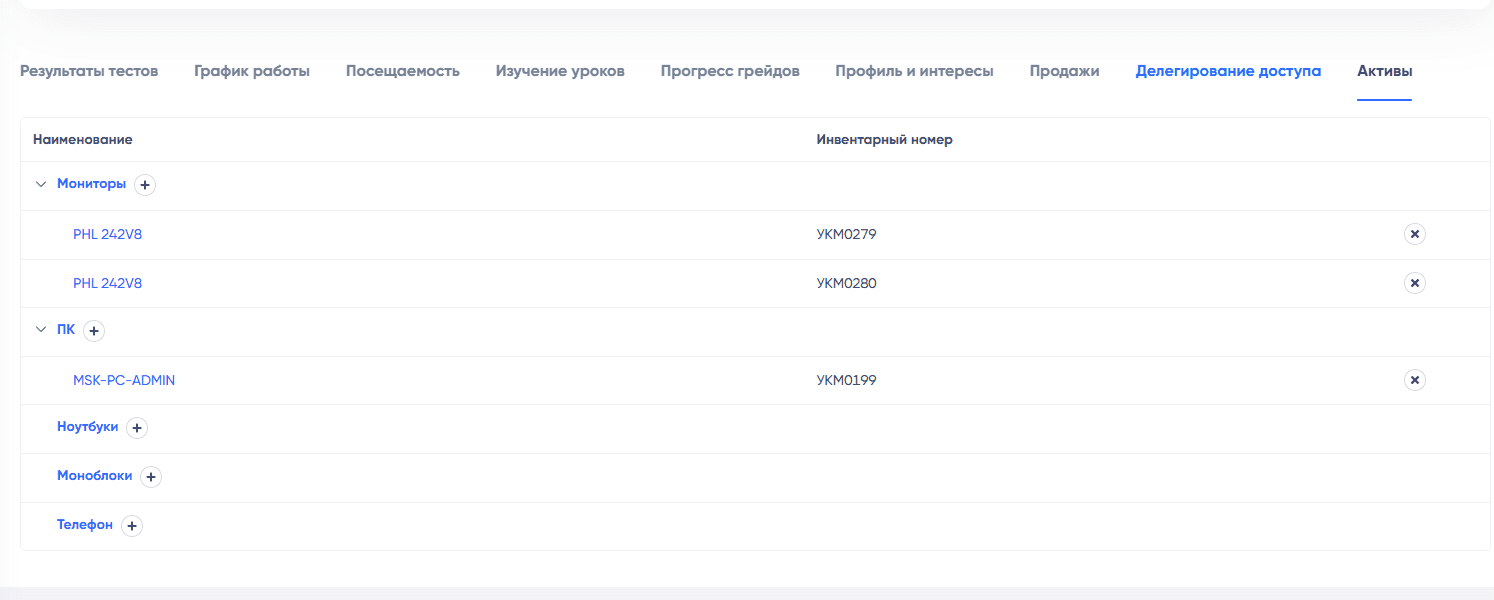
In the user profile, under the Assets tab, the assets assigned to the user are displayed.
They are grouped by categories, making it immediately clear which types of assets the employee has at their disposal and which they do not.
An administrator can immediately link additional assets or unlink existing ones in the user profile. This is especially convenient when assets need to be unlinked upon termination — simply go to the profile on the portal and click the cross next to the assets taken by the responsible person.
Quick Attachment of an Asset in the Profile
When attaching an asset in the profile, the user (administrator) clicks on the plus sign, and a window opens with a list of assets from the corresponding category. Only unoccupied assets are shown. There is a search by name.