Company Structure
Controls

-
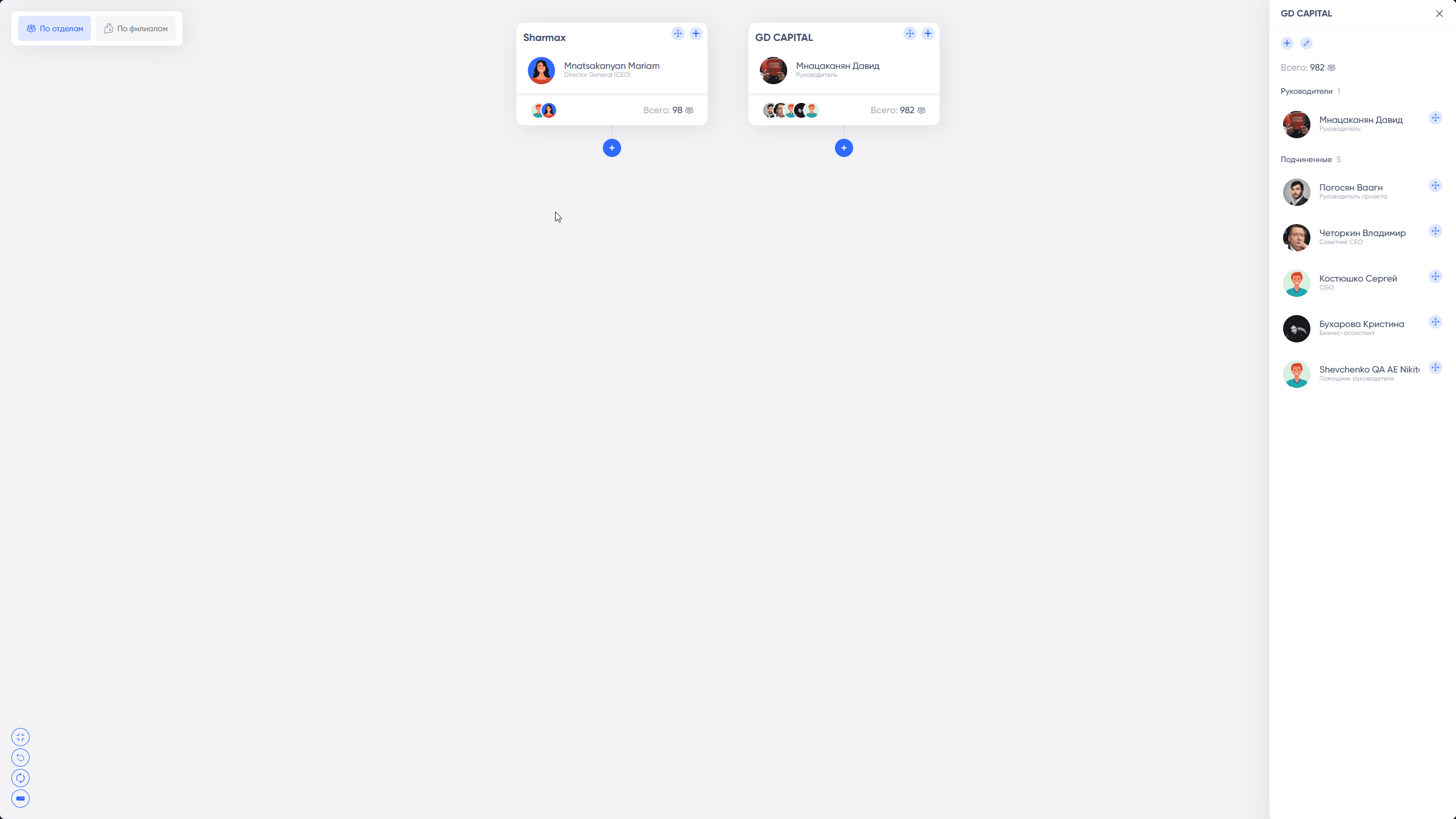
Expand to Full Screen. The department viewing and editing panel will also be displayed.
-
Reset Location. Returns the zoom and "camera" position to the starting position.
-
Reload Data. Loads the current data in the expanded departments. If departments have moved, this will also be reflected.
-
Collapse. Collapses all open departments.
Moving Departments
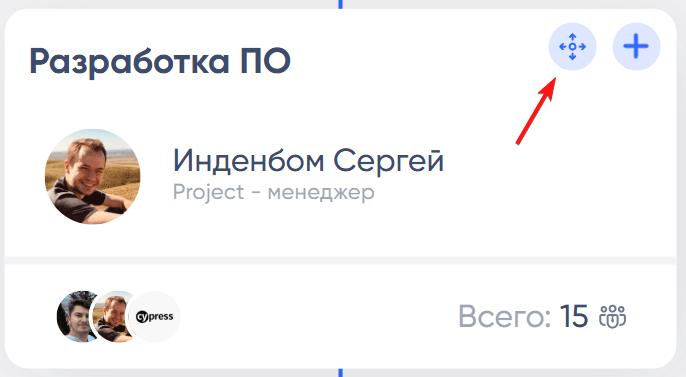
A department can be "Grabbed" by the icon with the cross and dragged:
When you start dragging, the areas where the department can be released will be highlighted:
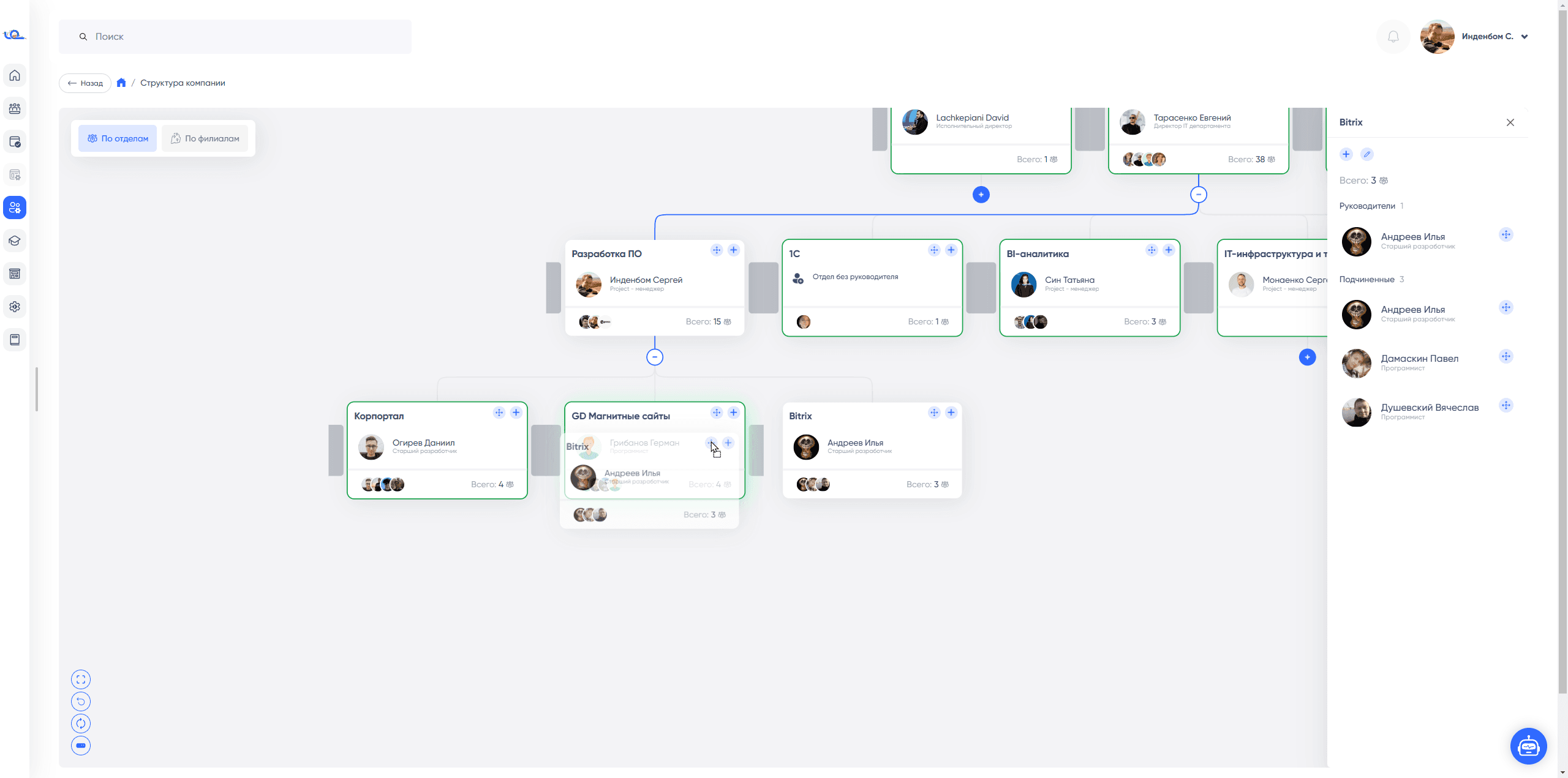
Departments can be dragged:
- Up a level or to another branch of the structure
- To the left or right of other departments
- To change the order and to change the affiliation of departments
You cannot drag:
- Inside itself
- Inside child departments
Creating a Department
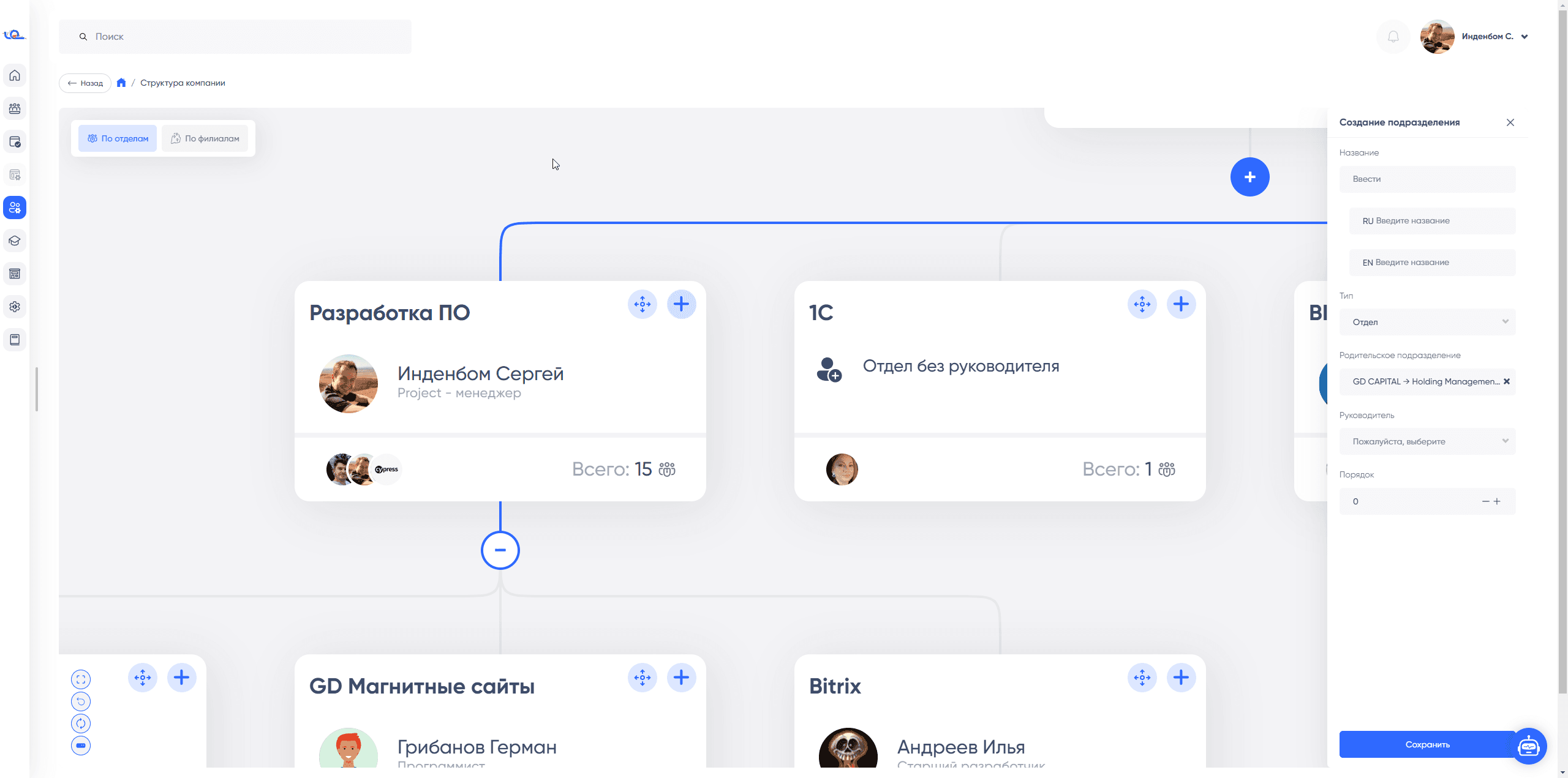
When clicking on the plus icon, a form for creating a child department will open in the sidebar:
Viewing a Department

If you click on a department, a viewing panel will open on the right. In it, you can:
- See the number of employees in the "Total" column, which includes all child departments.
- Add a child department.
- Go to edit the department.
- Move employees to other departments.
Moving Employees

To drag an employee, grab them by the icon with the cross and pull. By dragging employees from the right panel, you can drop them into one of the departments.
- If you drag a manager, they will become the manager of another department. The previous manager will be removed from the position. The "dragged" manager will cease to be the manager of the previous department.
- If you drag a subordinate, they will become an employee of the new department and will "leave" the previous department.