Section Home Page and Task List
Section Home Page and Task List
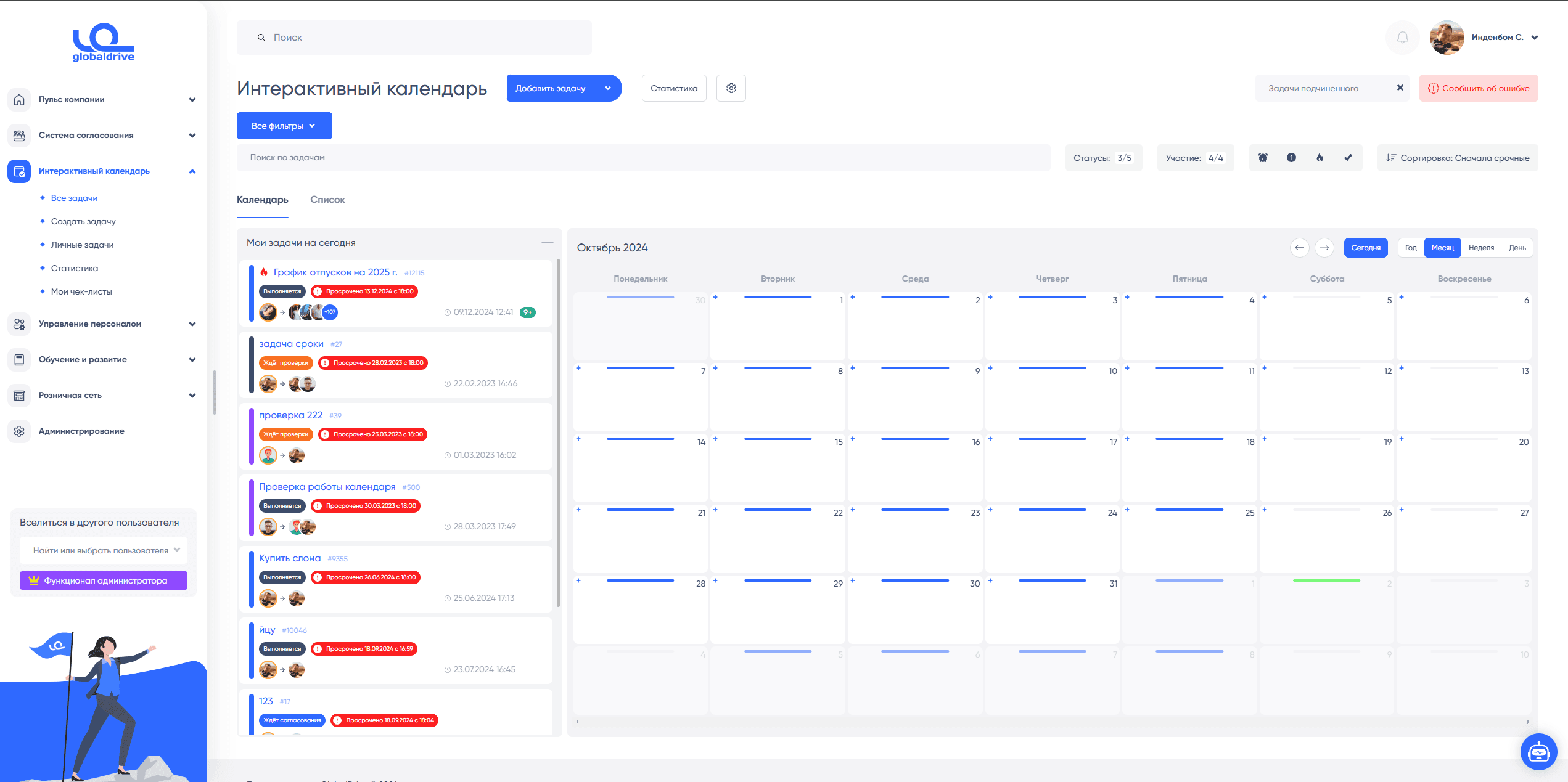
General Functionality
At the top, there are the following buttons:
- Add Task — a form for creating a new task will open
- Add Task from Template — you can select a template from the menu, and clicking will open the form for creating a task from the template
- Template List — a list of your templates will open (see Templates)
- Projects — a list of projects will open (see Projects)
- Tags — a list of tags will open (see Tags)
Next to it, on the right, are 2 more buttons:
- Statistics — a link to the statistics section (see Statistics)
- Settings — a settings window will open (see Settings)
At the top right:
- Subordinate's Tasks — select your subordinate and see tasks from their perspective
- Report an Issue
Filters

The following filters are available in the "All Filters" dropdown menu:
- Creation Date — date range in which the task was created
- Deadline — date range in which the sought tasks have a deadline
- Participants — finds tasks where the sought individuals are present in any status
- Assigners, Responsible, Co-Executors, Observers — finds tasks where selected employees are in the corresponding status
- Delegated — when the checkbox is checked, it finds tasks that have been delegated (see Delegation)
- Exclude Assigner / Responsible, Co-Executors, Observers — finds tasks where selected employees are NOT in the corresponding status
- Project Filter
- Tag Filter
Other filters are separately highlighted:
- Search by Task Name
- Status Filter — only tasks in the selected status will be displayed
- Participation Filter — for example, if "assigned" is selected, you will see those tasks where you are the assigner
- Overdue — where the deadline has already passed at the current time
- With New Comments — where there are comments that you have not reviewed. Specifically, you have not opened the task since the comments appeared.
- Only Important
- Requires Approval — tasks assigned to your subordinates from employees of other departments that need to be approved before being assigned for work
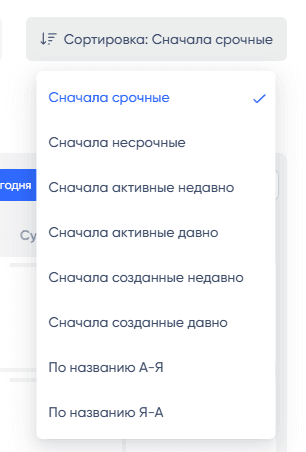
Sort options:
My Tasks for Today
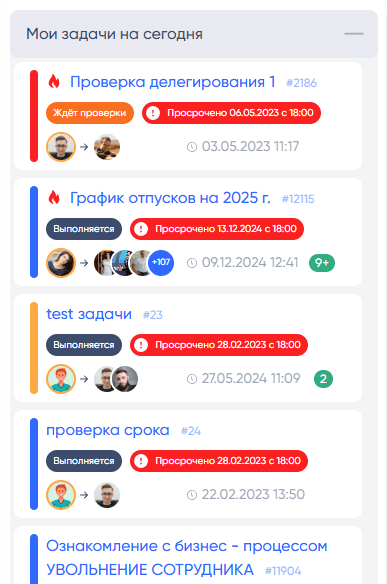
In this compact list, you will see tasks that have a completion date of either today or are overdue.
If an employee is selected in the "Subordinate's Tasks" menu, you will see their tasks in the list.
Clicking on the header or the "–" (minus) button collapses the list like this:
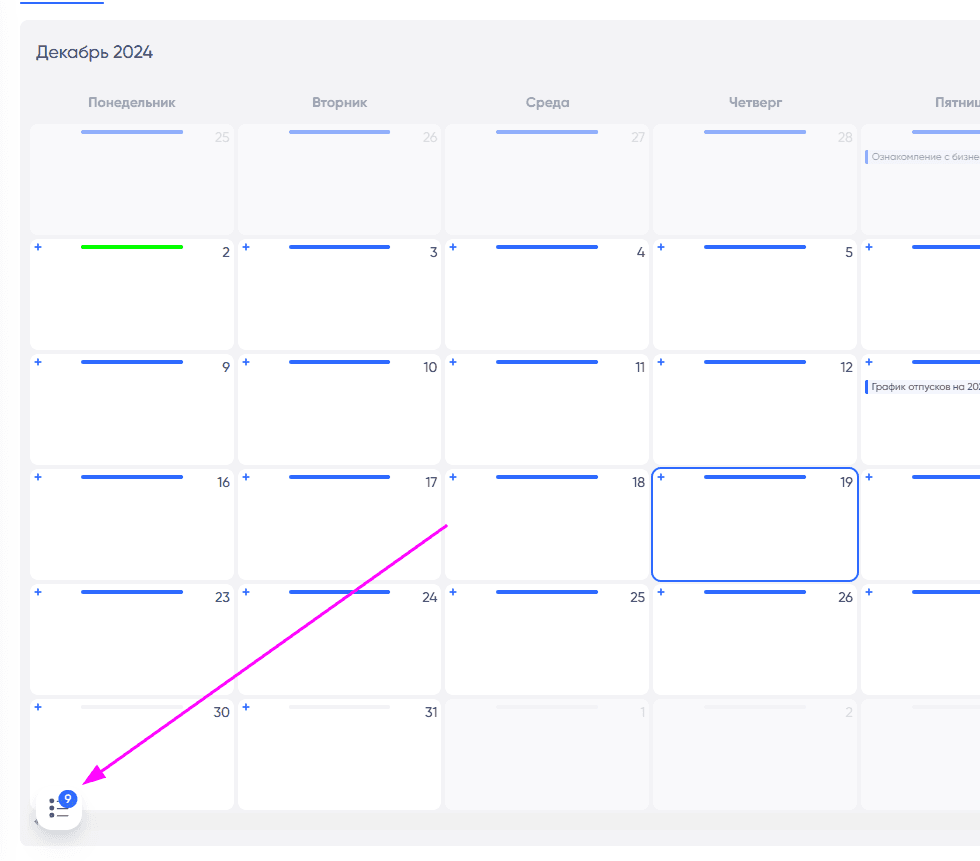
You can expand this block by clicking on the icon.
Task Calendar
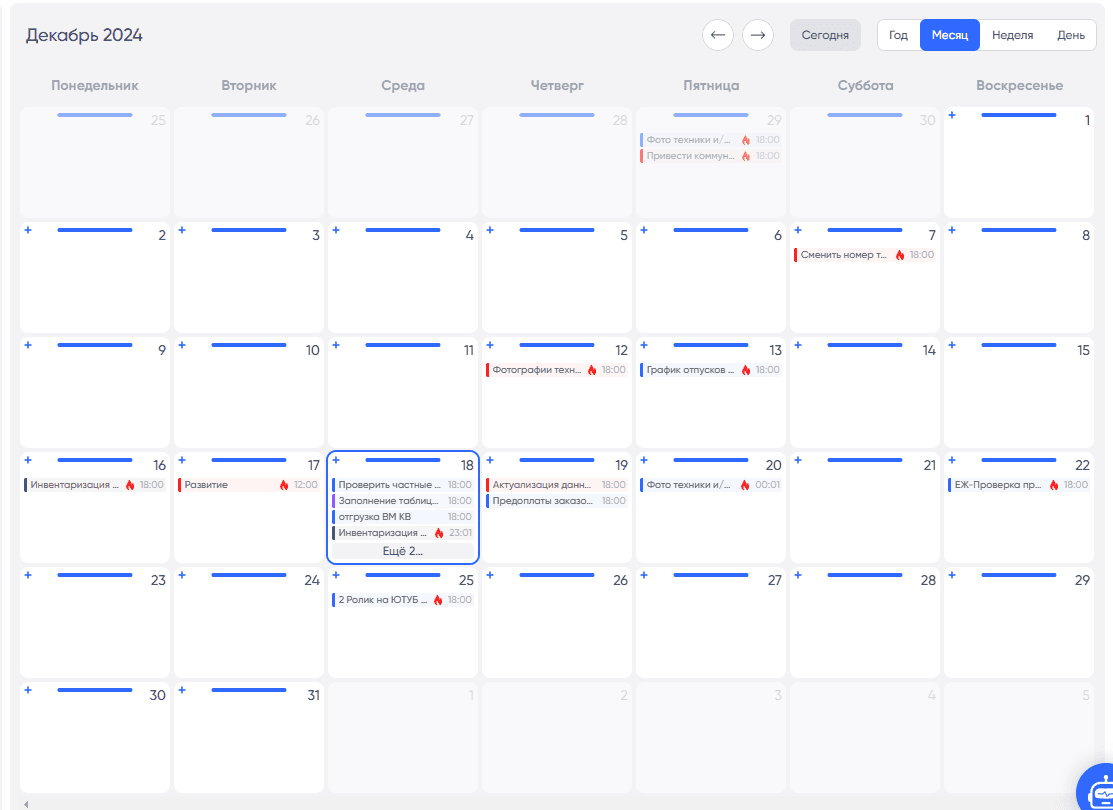
The calendar displays your tasks on their deadline day. The filters are taken into account.
If a task does not have a deadline, it can only be found in the list.
In the cell above, the working status of the employee is displayed with a bar — working day or absence.
If there are many tasks in a cell and they do not fit, a "More" button appears, which you can click to see the full list of tasks for the day:
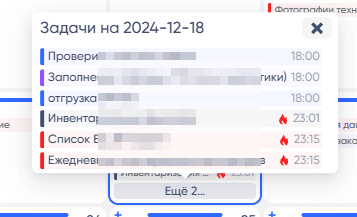
Window when clicking "More 2..."
Attention: There is also a view of tasks in the form of a week or day, but this functionality is not used and may not work very conveniently.
Clicking on an empty field in the day cell allows you to add a task.
Task List
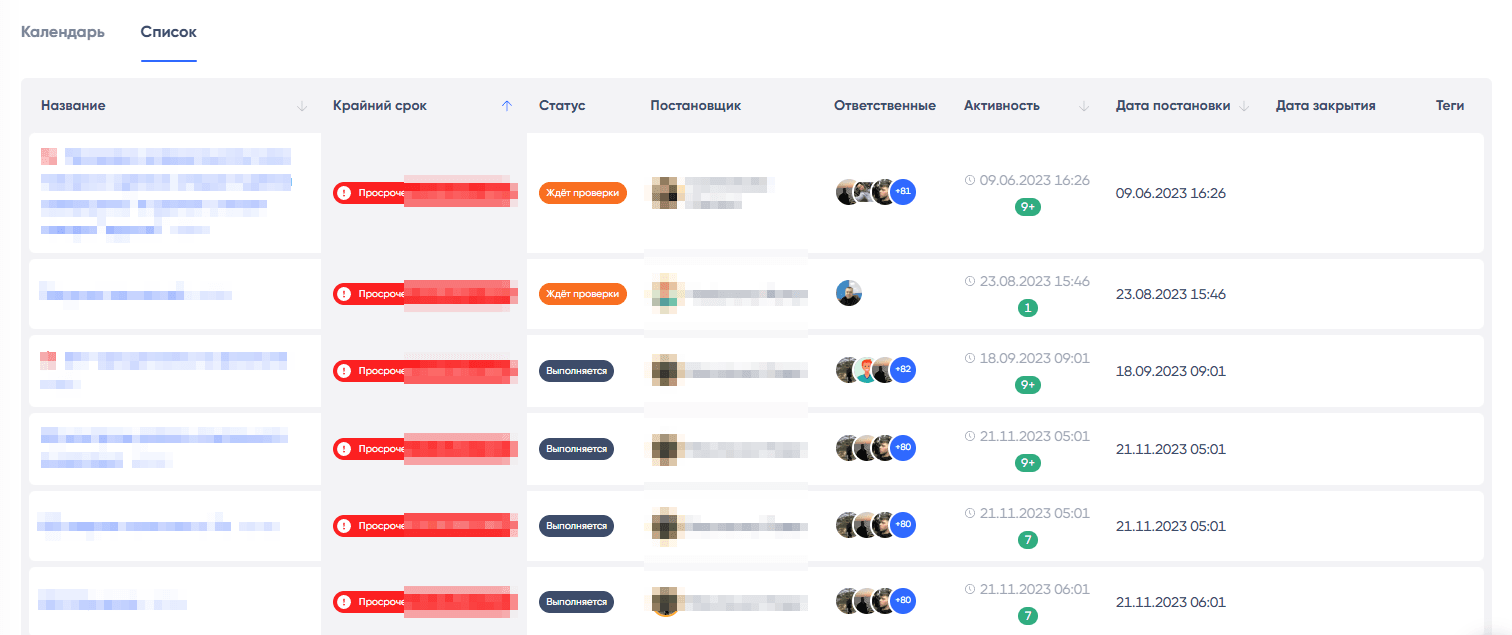
The table displays the entire list of current tasks according to the selected filters.
The following columns are displayed:
- Title. also marked as "Important Task"
- Deadline. This block is highlighted in color depending on how close the deadline is. The closer it is, the brighter it gets.
- Status
- Responsible. Avatars of the first few people from the list are displayed, and if there are many, the count is shown.
- Activity. The date of the last change in the task is displayed, taking comments into account. The number of new events that have not been viewed is shown in a circle.
- Creation Date
- Closure Date
- Tags
Sorting works in the table. You can click on a column to change the type and direction of sorting. Sorting works on the following columns:
- Title
- Deadline
- Activity
- Creation Date
- Closure Date