Templates
A template is a special type of task that cannot be worked on but can be used to create a regular task. A task from a template can be created both manually and on a schedule.
List of Templates
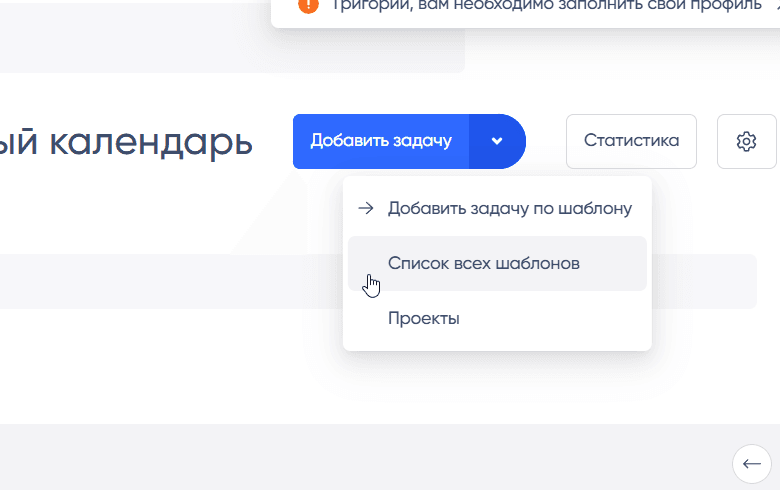
The list of templates is located in the upper dropdown menu.
The list shows brief information about the template, and you can navigate to the template to view and edit it.
Viewing a Template
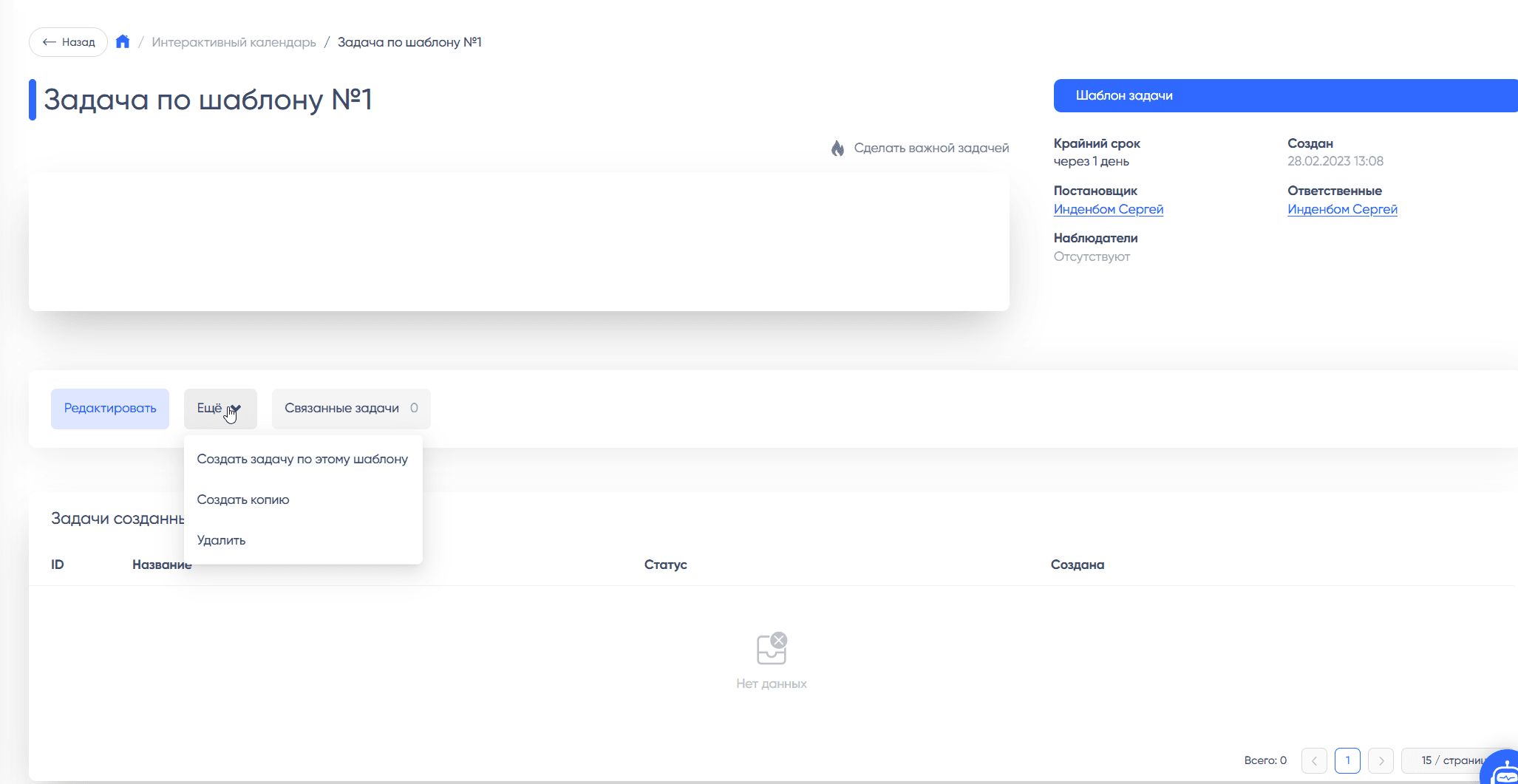
The template viewing page displays the main data of the template: description, creator, responsible persons, observers, creation date, and more.
Unlike a task, the template page displays:
- Deadline relative to the time of task creation from the template. For example: "In 1 day"
- List of tasks created from the template
Actions on the template:
- Edit
- Create a task from the template
- Create a copy of the template
- Delete
List of Tasks from the Template
On the template page, there is a list of tasks created from this template, along with their statuses and creation dates.
From here, you can navigate to the task.
Editing a Template
Description of the main fields can be found in the document: Creating and Editing a Task
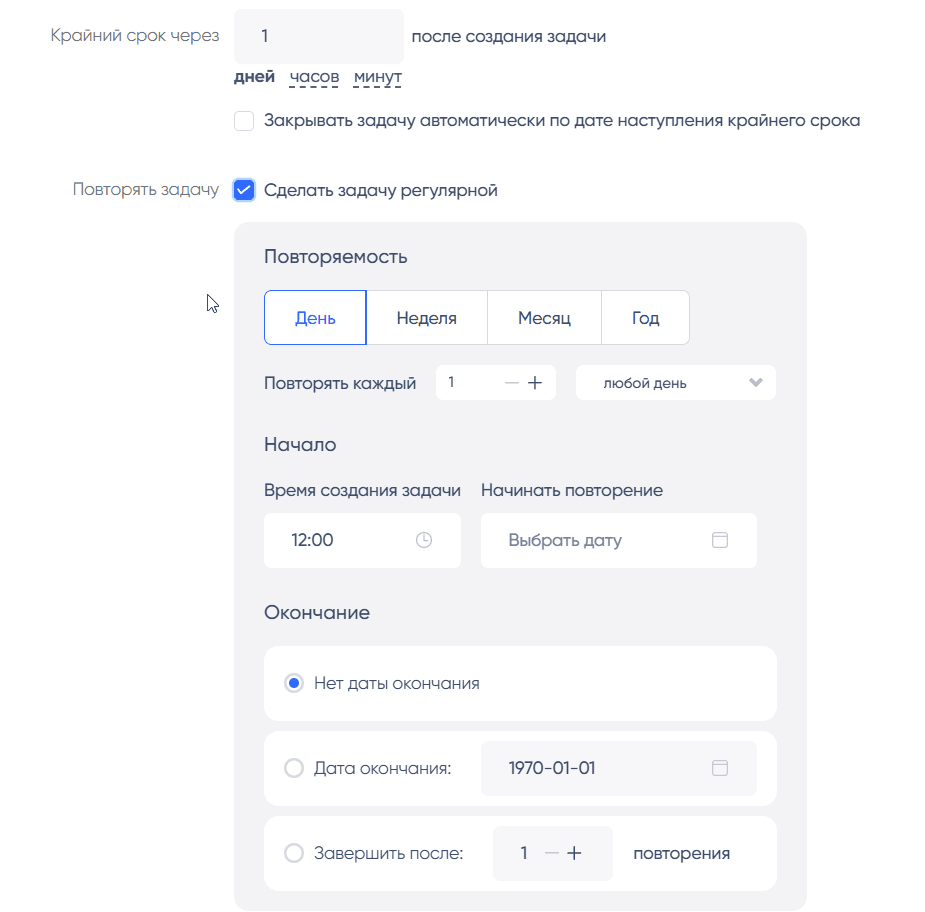
Unlike a task, there are also several additional settings:
- How many days/hours/minutes after the task is created the "Deadline" will be set
- Template recurrence settings — similar to any calendar:
- Every day
- Interval in days between tasks (default — every day)
- Every week
- Interval in weeks (default — every week)
- Day on which the task is created. For example, you can set it to create a task every day from Monday to Friday
- Every month
- You can choose a specific date on which the task will be created
- Alternatively, you can choose a day of the week on which the task will be created
- In both cases, you can select an interval in months for task creation recurrence
- Every year
- You can choose a day and month
- You can choose a day of the week and month
- Task creation time
- Start date of the template's validity
- End date of the template's validity and maximum number of repetitions
- Every day
Navigating to the Template from a Task
If you have access to the template, for example, if you are its author, you will see a link to the template in the task and can navigate to it and, for example, change the template settings.
Creating a Template from Tasks
In the menu of each task, there is a function "Create Template from Task," which allows you to quickly create a template from a regular task.
Features
Difference Between Template Author and Creator in the Template
In the template settings, you can select a creator. This can be any user that you have access to view on the portal. However, such a template will not be displayed to the creator in the list of templates. It will remain with the author.
Automatic Creation of Templates upon Author's Termination
Note: This functionality is in beta version and may not be publicly available at the time of reviewing this documentation.
If the author of the template is terminated on the portal, their templates are "frozen," and no new tasks can be created from them.