How the Tracker Works
How the Tracker Works
The Tasks section is a specialized area of the corporate portal for managing tasks within projects or managing individual tasks, serving as a task tracker.
Key Purpose: to structure, distribute, control, and analyze the execution of work in a team or individually.
The task tracker consists of the following sections:
- All Tasks
- Create Task
- Statistics
- My Checklists
- Projects
- Settings
- Templates
Note: All authorized users of the corporate portal have access to the sections of the task tracker.
Description of the Main Entities of the Task Tracker
Task — is the basic unit of work, representing a specific action or set of actions aimed at achieving a specific result within a project or business process.
Tasks can be individual and project-based.
Individual Task — a task not associated with a project.
Project Task — a task related to a project.
Template — is a special type of task that cannot be taken into work but can be used to create a regular task.
Note: For more information on managing templates, see the section Creating and Editing a Template.
Project — is a cohesive set of interrelated tasks aimed at achieving a unique result (product, service, solution) under specified conditions (deadlines, budget, resources, quality).
In work management tools (task tracker), a project acts as a container and context for tasks, giving them semantic coherence and targeted direction.
Task Lifecycle: System Statuses of a Task
The main metric defining the lifecycle of a task is the system status of the task. This means that the management of any task in the task tracker is carried out by changing the system status of the task depending on the stage of completion of the task. The set of system statuses for tasks is not editable. Any task created in the task tracker has a set of system statuses:
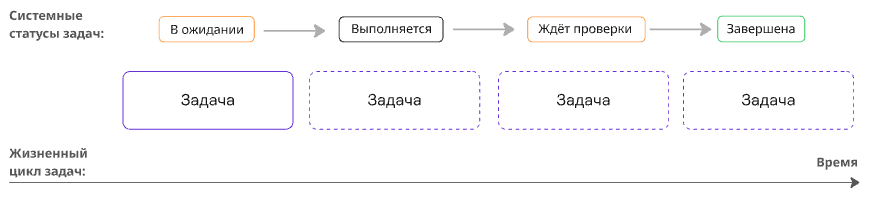
Note: For more information on managing tasks, see the section Creating and Editing a Task.
Task Lifecycle: Project Management
In the context of managing project tasks, it is important to understand several key points:
- Project tasks have the same system statuses as individual tasks;
- Project tasks are linked to a project and have additional metrics related to project stages;
- The system statuses of tasks are not related to project statuses;
- Project stages depend on the business logic of the project;
- A project can be used as a container to combine tasks from different business processes;
- Project stages can be edited.
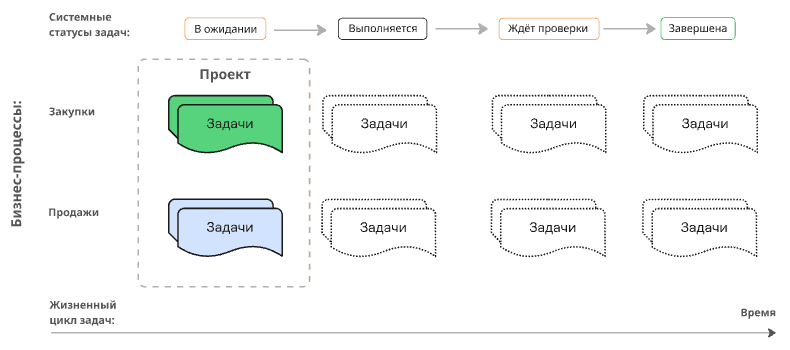
Note: For more information on managing projects, see the section Projects.
How to Monitor Results and Process
To track changes in your tasks, set up notifications by doing the following:
- In the upper right corner, click on the user icon (your icon on the corporate portal), then click Notifications.
- Find the Tasks section and set the necessary E-Mail and Portal options for each entry.
Display Tools
Different formats for displaying tasks (calendar, list, kanban board) serve different purposes — together they provide a complete picture of working with tasks in the task tracker.
- Calendar — for time management and deadlines.
- List — for quick overview and bulk actions.
- Kanban Board — for visual process control and team coordination.
The combination of these views provides a complete picture: you can plan by time (calendar), manage the task list operationally, and monitor progress (kanban).
Checklists
Checklist — is a structured list of subtasks or checkpoints within a single task (card) in the task tracker. Each item represents a specific action or condition that needs to be completed/verified. As the user completes tasks, they check off items (usually with a tick), visually tracking progress.
Scope and Differences
Types of checklists:
- personal checklists
- checklists related to tasks
Note: For more information on managing checklists related to tasks, see the section My Checklists.
Key Characteristics
- Nesting A checklist is inside a task or is a separate entity (personal checklist), complementing its description.
- Decomposition Breaks down a complex task into smaller, manageable steps (e.g., “prepare report” → “collect data”, “write introduction”, “check figures”).
- Visual Progress Checked items are highlighted (crossed out, change color), allowing immediate visibility of what part of the work is completed.
- Flexibility Items can be added, deleted, or edited during the work process.
- Non-Obligatory Sequence In most cases, the order of completing items is not strictly fixed (unless explicitly stated otherwise).
Note: For more information on managing checklists related to tasks, see the section My Checklists.