Orders
Order management system (OMS)
The Orders section is part of the Store module and provides full order lifecycle management — from cart to delivery tracking.
Orders is a section of the OMS (Order Management System) module designed for order management.
Note: Full functionality of the section is available to users with the tenant administrator access role.
To access the Orders section workspace, navigate through the portal’s system menu: Store and Catalog ➔ Orders. Orders are displayed in the section’s workspace as a list.
Note: Viewing the order list is available to users with the following access roles: OMS Admin, Company Admin.
Each user can see orders created on tenants they have access to. Consequently, different users may see different numbers of orders. The number of orders available for a user to view is displayed in the top‑left corner of the section’s workspace.
Order list structure:
| ID | Order identifier in the OMS database |
|---|---|
| Tenant | The tenant where the order was created |
| User | The user who created the order (Customer; typically has the Company Admin access role). Click the user to open their profile |
| Supplier Warehouse | The warehouse from which goods are shipped to the customer. |
Note: New orders are created from sub-orders and divided into supplier warehouses. This setting is global and can be configured in the tenant settings.
| | Products | List of products in the order. Maximum of three products are displayed in the list. To view the full order list, click the order entry — you will be redirected to the order view page | | Order Status | Current order status | | Total Cost | Total order cost in the settlement currency for the tenant’s orders.
Note: Access to order settlement currency settings is granted to users with the tenant administrator role.
| | Payment Status | Current payment status: Requires Payment, Prepaid, Paid | | Order Creation Date | First date in the order status chain — the date when the order is created in draft status | | Planned Completion Date | Last date in the order completion status chain |
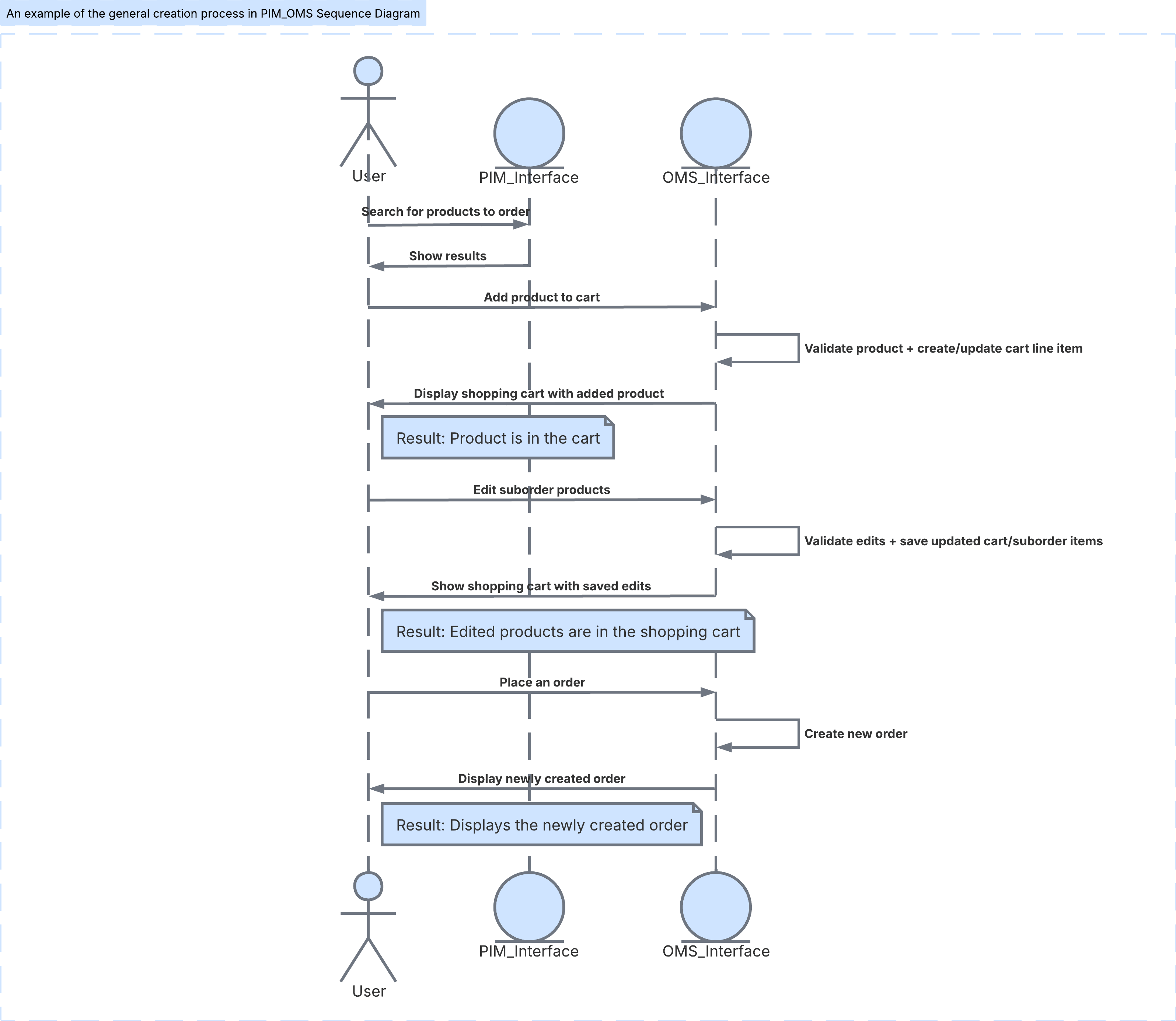
An example of the general creation process
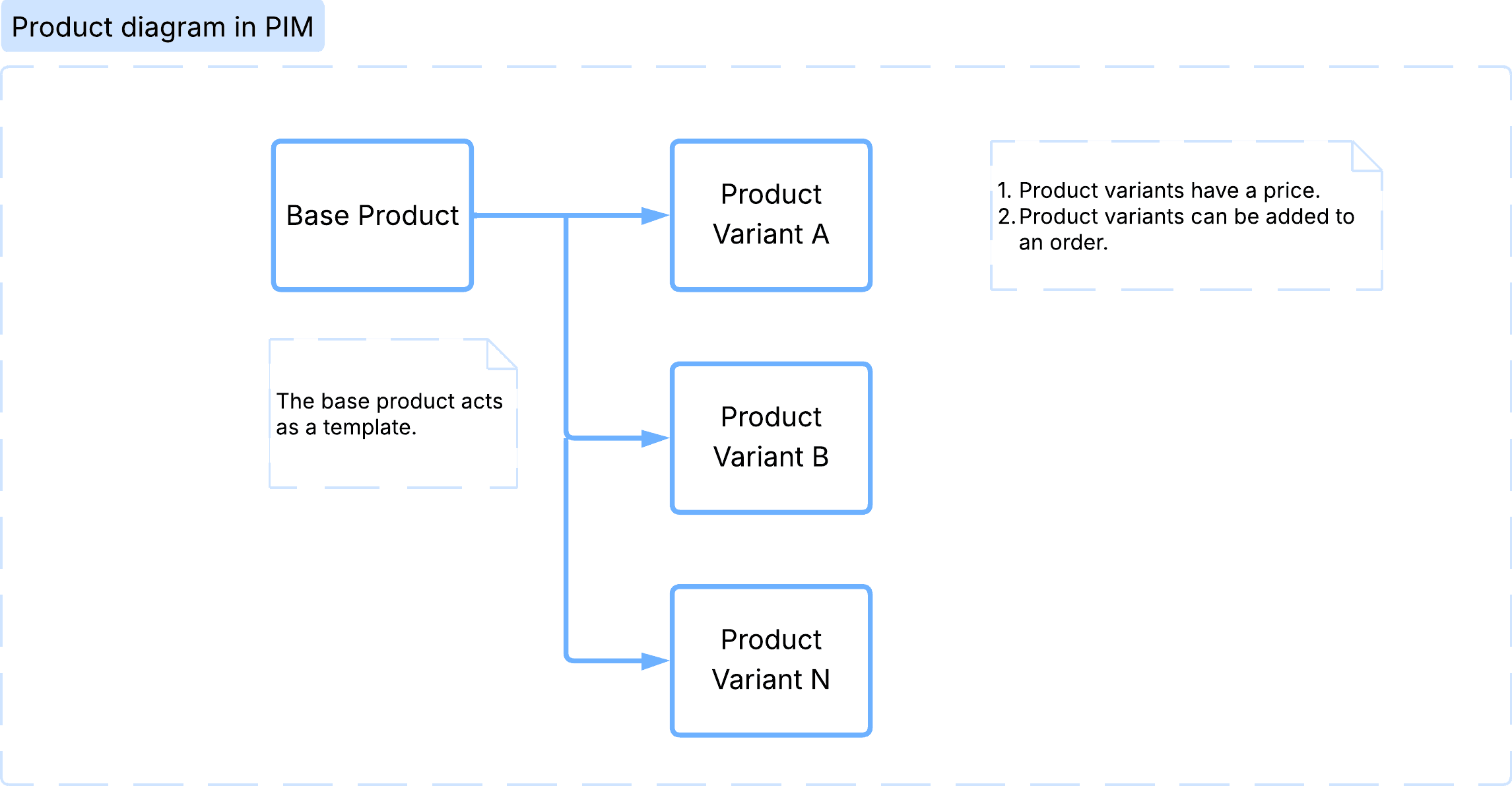
The structure of products in PIM
How to find a product for an order
- Navigate to the Variants Catalog portal section.
Note: Products (product variants) are displayed in the Products Variants Catalog section workspace as a list (by default).
- Adjust product display (if needed): to display products as cards, toggle the switch . To display products as a list, toggle the switch .
- Filter desired products by category (if needed): click on the desired category in the product category list panel. The product category list panel is located on the left side of the section's workspace. The selected category will be highlighted, the Filters (n) button will show the number of applied filters, and the section workspace will display the list of products in the selected category. To disable the category filter, click the active category again. To reset all filters, click .
- To search for a specific product, start typing the product name in the Search field. The list of found products will appear in the section workspace, and the Filters (n) button will update the number of applied filters. To reset all filters, click .
- To open the filters panel, click Filters (n). Fill in the required fields in the Filters panel:
- Variant article input field: enter the article number of the desired product variant. As a result, the product list will show variants with the entered articles.
- Product article input field: enter the article number of the desired product. As a result, the product list will show products with the entered articles.
- Variant ID input field: enter the ID of the desired product variant. As a result, the product list will show the variant with the entered ID.
- Product ID input field: enter the ID of the desired product. As a result, the product list will show the product with the entered ID.
- Spare part for model multi‑select field: select one or more models for which you want to get a list of included spare parts. In PIM, spare parts are attached to product variants; start typing the variant name, then select it from the list. To cancel selection, hover over the selected values field, then click the cross.
- Plant search input field: enter the desired production site value. As a result, the product list will show products with the entered production site.
- Plant multi‑select field: select one or more production sites. As a result, the product list will show products with the selected production sites.
- Brands multi‑select field: select one or more brands. As a result, the product list will show products with the selected brands.
- Families multi‑select field: select one or more product families. As a result, the product list will show products from the selected families.
- Retail status multi‑select field: select one or more statuses.
- Dealer status multi‑select field: select one or more statuses.
- Show archived toggle (off by default): enable this toggle to get information about previously deleted entities.
Found product variants will be displayed in the section workspace as a list. To access a product variant or product card, click the corresponding name for the desired product variant entry.
How to Add a Product to the Cart
- Find the product variant you want to add to the order.
- Open the product variant card, then click Add to Cart and select the product quantity.
Note: This functionality is available to users with the OMS Admin or Company Admin roles.
-
To access the cart, either:
- click In the Cart in the added product’s card;
- click the cart icon next to your profile if you’ve left the product card.
-
Edit cart items (if needed), then:
- click Go to Checkout. If you want to place the order later close the cart — selected items will be saved, and you can return to checkout anytime.
In Cart, the following information is displayed for each added product variant:: Product variant name.ID: product variant number in the database.SKU: product variant stock‑keeping unit.Supplier Warehouse: supplier warehouse code.From: minimum quantity of the product (in pcs) available for order placement.Dealer price per unit, price/unit in the product’s regional currency.Total amount for each cart item (accounting for quantity of the same model) in the product’s regional currency.For payment: total order amount (list of totals) in order regional currencies.
When a product is successfully added to the cart, a cart icon with the number of product model types in the cart appears next to your profile.
How to Place an Order
- Go to the cart.
- Edit cart items (if needed), then click Go to Checkout.
Note: This functionality is available to users with the OMS Admin or Company Admin roles.
- In the Order Checkout form, the Suborders section displays:
- Suborders with the following information:
- Supplier warehouse code.
- Suborder sequence number with total suborder count.
- Quantity: number of items in the suborder (pcs).
- Total Cost: total cost in the order’s regional currency.
- Orders Checkout with the following information:
- Quantity: total number of items across suborders (units).
- Total Cost: suborder amounts in product regional currencies.
- Orders Checkout button.
- Suborder list with detailed information for each suborder.
- Suborders with the following information:
Note: Each suborder section can be expanded for detailed review and editing of item quantities in the suborder. For details, see the View and Edit Suborders section.
- Suborder: suborder sequence number relative to total suborder count.
- Supplier Warehouse: supplier warehouse code.
- Quantity: number of items in the suborder (units).
- Total Cost: suborder total cost in the product’s regional currency.
- To place the order in the Orders Checkout section, click Orders Checkout; to cancel, click Back.
After successful order placement, newly created orders appear in the Orders section’s list.
How to Edit Suborder Products
- Go to the cart with selected items, then click Go to Checkout.
Note: This functionality is available to users with the OMS Admin or Company Admin roles.
- In the Order Checkout form, pre‑orders are grouped by supplier warehouse. To access a specific suborder, click the relevant suborder item or the suborder section below.
- An expanded suborder displays the list of product variants. The interface allows you to:
- Edit product quantities (if needed): select the relevant entry and change the value in the Quantity column. When you change the quantity, all amounts for the selected entry are recalculated automatically, and edited values in the cart are updated.
- Remove products from the pre‑order (if needed):
- To delete selected entries, check the box at the start of the relevant entries, then click Delete Selected Products. Confirm with Confirm or cancel with Cancel.
- To delete all products, check the box in the list header, then repeat the above steps to confirm the operation.
How to View Suborder Products
- Go to the cart with selected items, then click Go to Checkout.
Note: This functionality is available to users with the OMS Admin or Company Admin roles.
- In the Order Checkout form, pre‑orders are grouped by supplier warehouse. To access a specific suborder, click the relevant suborder item or the suborder section below.
Note: The main sections of the Order Checkout form are described in How to Place an Order.
An expanded suborder displays the list of product variants in the suborder.
Suborder product list structure:
| Name | Product variant name |
|---|---|
| SKU | Product variant stock‑keeping unit |
| Image | Product variant image |
| Categories | Product variant category |
| Family | Product variant family |
| In Container | Number of packages in a 40‑foot container |
| Price | Dealer price per unit, price/unit in the product’s regional currency |
| Quantity | Number of units for the selected model |
| Total | Total price for the total number of units for the selected model |
Below the list, the total number of product units and the total order cost in the product’s regional currency are displayed.
How to View Container Load in a Suborder
- Navigate to the cart with selected products, then click Proceed to Checkout.
Note: This functionality is available to users with the following access roles: OMS Admin, Company Admin.
- Container loading can be viewed for each suborder. In the Order Checkout form, preorders are grouped by supplier warehouse. To access the desired suborder, click the desired suborder item or the suborder section below, then in the expanded section, find the Load Calculator.
- Click the 40HC container card. The card displays information about the container’s maximum weight and internal volume.
Note: Modeling is performed for a 40‑foot high cube container (High Cube) — 40’HC. Calculations are based on parameters set in PIM: Store and Catalog ➔ Settings ➔ Containers. To clarify or change the set parameters, contact a user with the PIM Admin access role.
In the Load Calculator section, one or more windows will appear, depending on the number of required containers, with information on the loading of each container:
- Total:
- number of packages in the container;
- cargo volume in cubic meters;
- relative container volume loading;
- cargo weight in kilograms;
- relative useful weight loading of the container.
- Product List:
- product name;
- quantity of the product for each entry.
- 3D Container Model:
- Allows viewing the distribution of packages inside the container.
- Allows rotating the container in three planes, zooming in (), zooming out () and resetting the image to its original size ().
Note: The model is for demonstration purposes only, and simulation results may differ from reality.
How to Leave a Note When Placing an Order
- Navigate to the cart with selected products, then click Proceed to Checkout.
Note: This functionality is available to users with the following access roles: OMS Admin, Company Admin.
- A comment can be added to each suborder. In the Order Checkout form, preorders are grouped by supplier warehouse. To access the desired suborder, click the desired suborder item or the suborder section below.
- Enter a comment in the Order Comment field, then return to order checkout.
After the order is placed, the added comment will be displayed in the order, in the Note section.
How to view the order page
- To view the order list, navigate to the Orders section.
- To access the order view page, click the desired order entry.
- The Show order page contains the following elements:
-
Show order with the order number.
-
Entry indicating the time relative to order creation and last edit.
-
Order status chain with planned status dates (upon order creation:
Draft). -
Information section indicating: supplier warehouse code, order number, order tenant, customer, current payment status.
-
Order Products section with list of order products. Order product list structure:
Name Description Name Product variant name Article Product variant article Image Product variant image Categories Product variant category Family Product variant family In Container Number of packages in a 40‑foot container Price Dealer price per unit, price/unit in the product’s regional currency and in the order settlement currency. Quantity Number of product units for the selected model Total Total price for the total number of product units for the selected model in the product’s regional currency and in the order settlement currency Below the list, the estimated order cost in the order currency and the total order amount in the product’s regional currency and order settlement currency are displayed.
-
In the Load Calculator section, one or more windows will appear, depending on the number of required containers, with information on the loading of each container:
-
Total:
- number of packages in the container;
- cargo volume in cubic meters;
- relative container volume loading;
- cargo weight in kilograms;
- relative useful weight loading of the container.
-
Product List:
- product name;
- quantity of the product for each entry.
-
3D Container Model:
- Allows viewing the distribution of packages inside the container.
- Allows rotating the container in three planes, zooming in (), zooming out () and resetting the image to its original size ().
-
-
Note: The model is for demonstration purposes only, and simulation results may differ from reality.
- Finance section:
- Order payment status.
- Total order amount.
- Order Payment: Planned amount.
- Order Payment: Actual amount.
- Order Payment: Due date.
- Order Prepayment: Planned amount.
- Order Prepayment: Due date.
- Order Tracking section: allows tracking order status changes.
- Supplier section: contains information about supplier warehouses.
- Planned Dates section: allows tracking planned order status dates and the history of planned status date changes.
- Logistics section:
- Route.
- Customs Clearance: Cost.
- Customs Clearance: Payment date.
- Transport: Cost.
- Transport: Payment date.
- Broker: Cost.
- Broker: Payment date.
- Note section: may contain information from the customer.
- Files section.
- Comment section: may contain a comment from the customer.
How to Configure Order Filters
(A new section will be added here soon)